Table of Contents
- User Guide
- Getting Started
- General Concepts
- Getting Help
- Requesting a Feature
- Frequently Asked Questions
- Videos for Learning TroopTrack
- Plan
- Planning an Event
- Tracking Attendance
- Attendance Reports
- Hours, Miles, and Nights
- Agenda View
- Year at a Glance
- RSVP'ing for an Event
- Import your unit's calendar to Google Calendar
- Importing Your Unit Calendar into the Mac OS Calendar App
- Event Integrated Accounting
- Manage
- Registering Members
- Controlling Access and Privileges
- Organizing Family Members
- Creating Patrols/Dens
- Managing Equipment
- Managing a Library
- Canned Reports
- Creating Custom Reports
- Unit Settings
- Money Account Basics
- User Accounts
- Managing Training
- How do I reset a user's password?
- Fundraisers
- Accept Payments Through TroopTrack
- Communicate
- Achieve
- Bulk Entry of Award Progress
- Individual Entry
- Creating a Custom Award
- Planning for a Meeting or Court of Honor
- Share
- Sharing Photos
- Creating a Web Site (Public and Private)
- Sharing Links
- Sharing Documents
- Automatic Monthly Newsletter
- Frequently Asked Questions
RSVP'ing for an Event
How It Works
When someone creates an event and invites you to attend, you will get an email with a link to the event, like the one shown below:
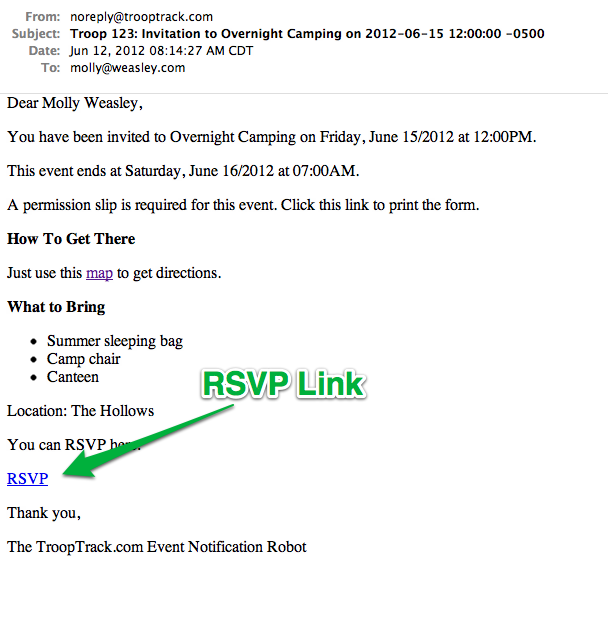
Click on the RSVP link to see more information about the event and to RSVP. The page will look like this:
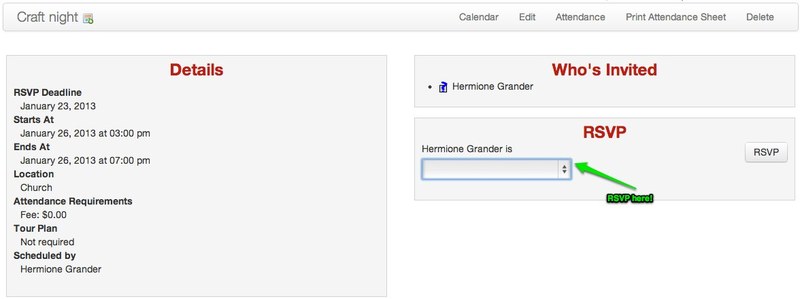
All you have to do to RSVP is choose whether you are coming and click RSVP.
Getting There from the Calendar
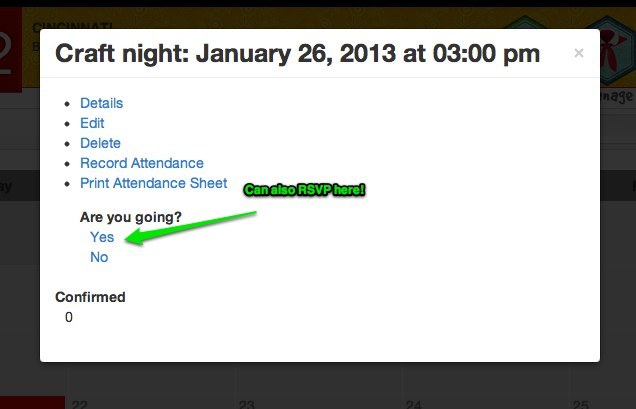
You can also RSVP for an event by clicking on the event from the calendar. If you have the "manage_events" privilege however you are going to see an event form first. To get to the RSVP form, you just need to click "yes" or "no" under "Are You Going?" as shown below: